




ACCESS ENDS DECEMBER 14th, 2026
The APSU Zoom contract is ending, and we are transitioning away from Zoom. Zoom will remain available through December 14, 2026. Up until then, you will be able to create, host, and record meetings as well as access and download your Zoom media. After December 14th, Zoom will be unavailable for any use. Any meetings scheduled for after December 14th will be inaccessible. It’s recommended that you begin transitioning to Microsoft Teams now, so you’ll be prepared to use it exclusively once Zoom is no longer available. Also, make sure to download any Zoom media you want to keep before you lose access.
APSU is a Microsoft Institution. As such, we already have access to Microsoft Teams, which provides all the major capabilities you experienced in Zoom and more. While Zoom access will remain through December 14th, 2026, we strongly recommend moving to Teams for your Fall meetings and courses. Check out GOVSTECH's Getting Started with Microsoft Teams page to grow more familiar with using the tool. Additionally, Microsoft has provided comprehensive resources. This Microsoft Teams Quick Guide has been one of our favorites.

Zoom Transition and Managing Your Content
1. Review
Review all Zoom Media (i.e. cloud recordings and whiteboards) to determine which ones you want to delete or download.
Download if:
-
The recording will be used in the future.
-
Others in your department or across programs reference or reuse the video.
-
The session content is not available in other course materials.
-
The recording is needed for accreditation, compliance, or assessment purposes.
Delete if:
-
The recording contains FERPA‑protected student information.
-
The recording is already backed up (e.g., saved locally as an MP4).
-
There is no plan to use the recording in the future.
-
The recording is outdated or low quality.
-
The recording includes copyrighted material shared only under limited use licenses.
2. Delete & Download
Delete and download Zoom media through the APSU Zoom web portal. Download any content you wish to keep before December 14th, 2026.
3. Transfer Course Videos
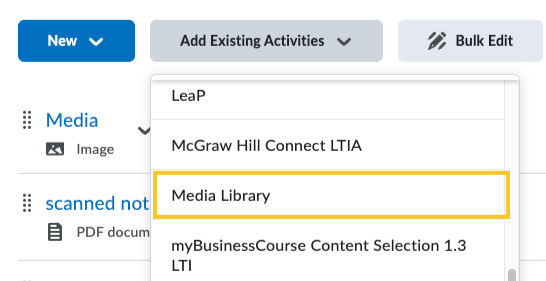
Upload Zoom recordings used in courses to the D2L’s media management tool - Media Library.
The easiest way to access all your Zoom media is through the APSU Zoom Portal. Once logged in with your single sign-on credentials, "Whiteboards" and "Recordings & Transcripts" are available on the left menu.
Managing Your Content in Zoom
Here is a detailed guide to help you get started with moving your Zoom content - Downloading Zoom Videos, Uploading to Media Library, & Placing Videos in D2L content.
.You can add Zoom videos to D2L by:
-
Uploading Zoom recordings into the D2L Media Library
-
Then embed the video directly from the D2L Media using Add Existing Activities > Media Library
Transition to Microsoft Teams
APSU is a Microsoft Institution. As such, we have access to Microsoft Teams, which provides all the major capabilities you would have experienced in Zoom and more. Feel free to check out GOVSTECH's page on Getting Started with Microsoft Teams to grow more familiar with using the tool.
From joining Teams to hosting your own meeting, here is a comprehensive link - Microsoft Teams Quick Guide
Getting Started with Using Microsoft Teams