


Exam Preparation
Respondus LockDown Browser is integrated within D2L, allowing faculty to secure exams without leaving the LMS. Instructors act as proctors, and should be ready to offer in-class support and address any issues that may arise. It’s important to carefully consider your settings, be familiar with the tool, and provide clear guidance to your students about the exam prior to the exam day.
Important Considerations
Integrity Tool Usage
Note: Respondus LockDown Browser and Honorlock cannot be used simultaneously. If you used Honorlock previously for an exam, you will need to remove the Honorlock coding in the quiz description box and remove the Honorlock password in D2L Quizzes. You will also need to remove information pertaining to Honorlock from your syllabus, course announcements, etc.
Distance Education provides access to testing integrity options as institutional contracts ensure students do not incur any extra fees. APSU does not require the use of testing integrity tools in courses. Usage is based on the instructional method and the faculty’s determination of the best assessment type for each examination and the necessary security level to assess the learning objectives.
Faculty must remain actively engaged in the assessment process to ensure academic integrity and support student success. While Respondus LockDown Browser secures the students' testing devices, the faculty are present to secure the physical testing environment.
Modifying D2L Quiz Setup
Distance Education encourages faculty to take measures with their quizzes/exams/tests that discourage academic misconduct including:
-
Converting multiple-choice questions into long answer, short answer, etc.
-
Creating question pools that will pull a random set of questions for each student.
-
Randomizing the order of questions and answer options.
-
Shortening the time limit to reduce the amount of time students would have to search for question answers.
-
Reducing the number of questions per page and prevent students from moving back to previous questions. This can help prevent students from splitting up the questions to share answers.
Communication
Include information about the use of LockDown Browser in your syllabus, D2L Announcements, and other relevant areas. Please refer to the "Communicating with your Students" tab for sample text for your syllabus.
LockDown Browser in D2L
D2L Quiz Set Up
Note: After copying a course, open the LockDown Browser dashboard in D2L Quizzes to activate LockDown Browser for students. Be sure to also review the 'Advanced Settings' to confirm they are configured correctly.
Some of the D2L quiz settings are particularly important when using Respondus LockDown Browser. Please refrain from using the Safari browser to access the LockDown Browser tab as it is known to cause issues.
-
After enabling Respondus, the phrase "- Requires Respondus LockDown Browser" will be added to the D2L quiz title. Do not edit/remove this addition to the quiz title, as it will disable Respondus and cause an error. Additionally, the title field has limited characters and your pre-existing title needs to be under 219 character to include the added phrase without cutting it off and causing an error. We also recommend avoiding the use of special characters in the title.
-
See step #3 below about passwords and/or start and end dates and times.
-
It is recommended that you set a time limit and choose to "Automatically submit the quiz attempt" which helps ensure the quiz is submitted before the student leaves the classroom and is no longer monitored by you.
-
Only allow one attempt. Any exceptions can be managed with special access.
-
See step #4 below for information about website links in the quiz questions.
Enable LockDown Browser
The "LockDown Browser" interface consists of four tabs: Dashboard, Getting Started, Video Tutorials, and Guides & Support. While there are resources available for Respondus Monitor, please note that APSU only has access to Respondus LockDown Browser.
-
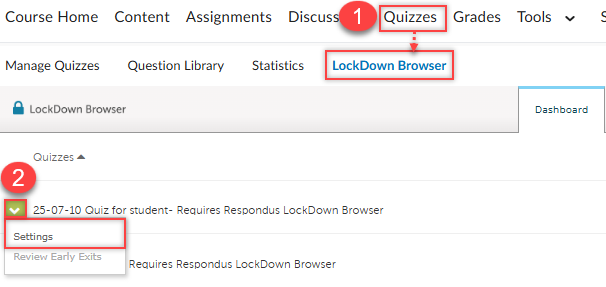
Access D2L Quizzes and select the LockDown Browser tab. A list of all your existing exams is shown under the Dashboard.
-
Click the drop-down menu next to the exam name and select "Settings."
-
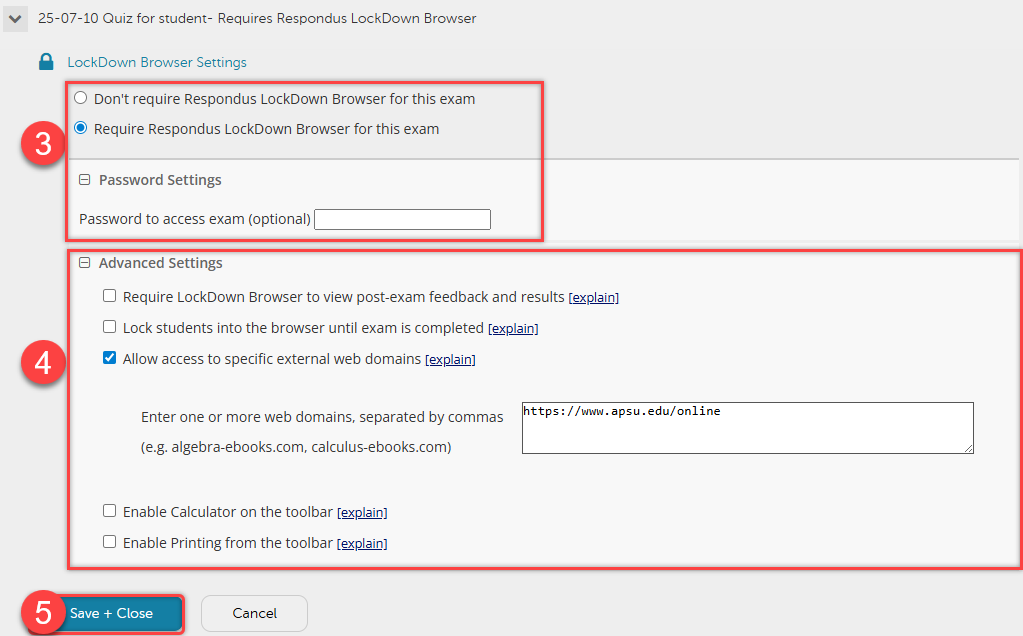
Choose "Require Respondus LockDown Browser for this exam." This opens additional settings.
-
If you have set a password in the D2L Quizzes settings, it will populate automatically. Passwords are optional. You may choose to use and provide a password to students during the testing session. Another option is to adjust the D2L quiz start date and time AND end date and time to align with the testing session so that it opens without a password.
-
-
Click on "Advanced Settings" to customize your exam. Each setting includes an explanation option.
-
Important information about links - In order to allow students to access specific websites during testing, the website URL must be added to the D2L quiz question text. The advanced setting, "Allow access to specific external web domains", expands website access to any page or link within the specified domain. For example, providing a link to "https://www.apsu.edu/online" in a D2L quiz question will allow students to access this page but, not navigate away from it. Enabling the advanced setting for web domain "www.apsu.edu" instead will allow students to access the entire APSU website.
-
-
Click "Save + Close" to apply your settings. After saving, the exam title will indicate that it "Requires LockDown Browser." Do not edit the exam name as it will disable Respondus and cause an error.
Practice Exams
To ensure a seamless experience for your first exam using LockDown Browser, it's highly recommended to have students complete an ungraded practice exam that requires the use of LockDown Browser before the actual graded exam. This practice exam will help familiarize students with the browser's functionalities and restrictions, reducing any potential technical issues during the graded exam.
There are two methods for offering practice exams:
-
Conduct an in-class practice exam to fully simulate a testing day. This will allow the students to download and explore the browser while the faculty is there for support.
-
Create a practice exam for students to complete outside of class time. This will allow students to download and explore the browser, but it will not truly reflect the testing experience in class. However, the practice exam can remain accessible throughout the entire course duration, allowing students to attempt it as many times as needed. This way, if they switch to a different computer, they can retake the exam to ensure everything runs smoothly on the new device.
Communicating with your Students
It is important to include information about Respondus LockDown Browser and what students can expect in your course syllabus, support resources, and when you introduce the exam. Below is generic text written by Distance Education that can be customized for your course. Please review it in its entirety and edit for your specific testing situation.
It is also beneficial to review the Testing Day Preparations page. This page will help you think through your testing day experience and better customize your communications with students.
IMPORTANT: Respondus has provided resources for faculty as part of the “LockDown Browser” tab in the D2L Quizzes area. Please note that APSU has access to Respondus LockDown Browser and not Respondus Monitor. Since these tools are related, Respondus often mentions both in its resources.
Respondus LockDown Browser
In this course, you will use Respondus LockDown Browser for taking some/all of the D2L Quizzes. This tool locks down your testing device so you cannot navigate away from the D2L quiz except to permitted websites. It also prevents you from printing, copying, or accessing other applications during an assessment. If you leave the quiz early, you will be prompted to provide a reason for leaving early, and this will be available for me to review. [Or, if you enabled the Advanced Setting, "Lock students into the browser until exam is completed" use this... You will not be able to exit the quiz early and must submit it in its entirety to exit the LockDown Browser.]
Testing location
[Pick one…]
Testing will occur in our regularly scheduled classroom, and you will need to bring a device for testing. Your device will need to meet Respondus LockDown Browser’s system requirements, as you will need to download and use the browser application. To help ensure your device is compatible, we will have a practice quiz. [Refer to the Practice Exams tab of this page for more information about the two options and then include your selection here for students.]
[OR]
Testing will occur in a computer lab [update with location information] where testing devices will be provided for you. [Refer to the Practice Exams tab of this page for more information about the two options and then include your selection here for students.]
Testing Day
When it is testing time, we will first prepare the testing environment. I will instruct you to follow these guidelines:
-
Turn off all mobile devices, phones, etc., and don't have them within reach.
-
Clear your area of all external materials — books, papers, other computers, or devices.
-
Remain at your desk or workstation for the duration of the quiz.
-
Raise your hand to signal when you need assistance
[Make sure you edit these guidelines and add some to fit your testing environment]
To take the quiz, use a web browser such as Chrome or Firefox to log into D2L and navigate to the quizzes area. Select the appropriate quiz where you will be prompted to launch or download the LockDown Browser application. You will not be able to take the quiz with a standard web browser.
[Include information here about how students will be directed to start their quiz. For example, will you be providing them with a password? Refer to Exam Start & Absent Students for more information.]
[Finally, refer students to the “Attendance Policy” and “Academic and Classroom Misconduct portions of your course syllabus.]