Testing Day Preparation
Since technical issues can arise with any technology, ensure you are prepared for potential challenges when using Respondus LockDown Browser (RLDB). Students will look to you for guidance. It is crucial to provide clear instructions which can significantly reduce anxiety and confusion, leading to a smoother testing experience for everyone involved. It's helpful to explain your specific testing procedures and what students can expect during the exam, including any rules that will be enforced and how to request assistance from you.
Preparations and the directions shared with students on testing day will vary based on your set-up. Here are some things to consider:
-
Are students required to bring their own devices? How will you handle the situation if a student does not bring their device, or their device fails to meet minimum system requirements?
-
Are you testing in a computer lab? Do the computers meet the minimum system requirements, and has the RLDB application for APSU devices been installed in advance?
-
Do you know how student devices connect to campus Wi-Fi? Are you prepared to help them troubleshoot?
-
How will you release the exam to students - will you require a password or set a start date and time? What about students who are absent?
-
Will you allow students to exit early by providing a reason, or are you planning to provide a proctor password if students need to leave early?
Based on the answers to these questions, think about what you might need to do to prepare or share with your students, in advance or on testing day. Review the information on practice exams and communicating with students to help your exam prep, as well as the remaining tabs on this page for what to expect during and after the testing process.
Devices & Downloads
The most common issues, according to Respondus, are issues with devices and downloads. To help avoid these, we recommend setting up a practice exam so that you can work through issues with students before testing day.
Only certain device types are compatible, and they must meet minimum system requirements. Refer to this Respondus devices article for the most up-to-date specifications.
Note: Students and faculty should avoid using the Safari browser to access D2L to launch Respondus as it is known to cause issues. If a student cannot use LockDown Browser due to unmet system requirements, alternative options include borrowing a device or testing in APSU’s library. Faculty may also arrange one‑on‑one supervision in person or via video conferencing. D2L Quizzes also allows instructors to grant special accommodations to bypass LockDown Browser when needed.
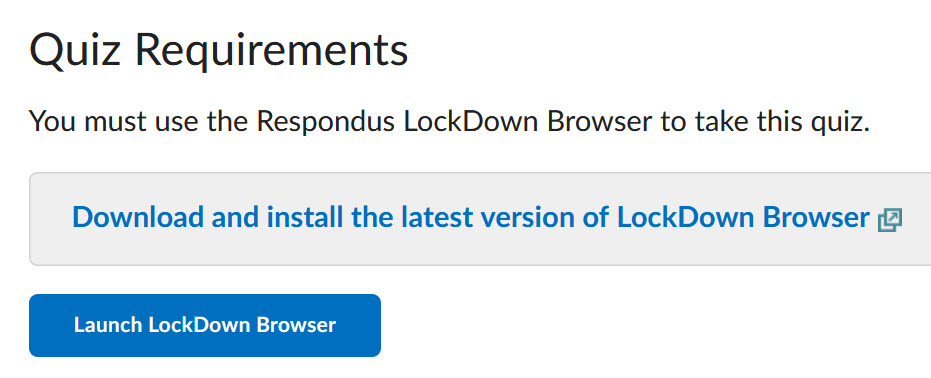
The RLDB applications are specific to each institution. Students must use the APSU version, which is available for download in D2L on the “Quiz Details” page, as shown below.
If a student is using a laptop borrowed from APSU, they may need administrative approval from GOVSTECH to install any programs, including RLDB. GOVSTECH may not be able to provide this service on demand, so it is recommended that students submit a Software Installation ticket well in advance.
If using a departmental computer lab, RLDB should be installed in advance by GOVSTECH as these are considered “managed devices” and require a special installation. Please coordinate with your department/GOVSTECH well in advance of testing day.
The Windows and Mac versions of LockDown Browser have a "Help Center" button located on the toolbar viewable before the exam starts. Use the "System & Network Check" to troubleshoot issues.
RLDB will release occasional updates. Encourage your students to get in the habit of checking for updates. After opening the RLDB but before starting the quiz, they can select the information icon (a lowercase letter “i" in a circle, see image below) on the browser’s toolbar and then “Check for Update.” If the student is on an APSU borrowed laptop or managed device in a computer lab, they may not be able to install the update without administrative approval from GOVSTECH.

Wi-Fi
Students may need assistance connecting to the campus Wi-Fi. These device-specific articles from GOVSTECH may be of assistance. Please contact GOVSTECH at 931-221-4357 or govstech@apsu.edu for any Wi-Fi related concerns or issues.
Wi-Fi can be stretched thin when many users are accessing it at once, like during an in-class testing session. Here are some suggestions to reduce Wi-Fi load:
-
Use a practice exam so that the RLDB can be installed before the testing day.
-
While the RLDB will lock students into the browser, other applications may be running on the students’ devices. Encourage them to close everything except the browser they will use to launch their D2L quiz.
-
Reduce the number of quiz questions per page which reduces the amount of content that needs to be loaded at one time.
-
Avoid/limit using large files or images in the quiz questions.
-
If possible, test in smaller groups.
Exam Start & Absent Students
There are two ways for students to access their D2L quiz on testing day:
-
Set the D2L quiz start date and time AND end date and time to match with your class time.
-
At testing time, provide them with the quiz password which they enter themselves to start the D2L quiz. If using this method, make sure you are using unique passwords for each quiz and change the passwords each term.
-
You can use both options.
A potential concern with either option is that students who are not in class could complete the D2L quiz without being monitored by the instructor, even when RLDB is required. For example, if a student in class, shares the password to a fellow-classmate not in attendance or the student accesses the quiz from home during the open window.
To discourage this, we recommend you plan ahead. Take in-class attendance so you know who should have completed quizzes in D2L. Let students know you will be checking attendance versus completed quizzes and note the consequences for participating in this form of academic misconduct in your class. You can also view the quiz “Attempt Log” in D2L to see who entered/completed the quiz and when. Find the quiz in D2L under Quizzes, select the down arrow next to the quiz name, and the choose “Attempt Logs.”
Early Exits
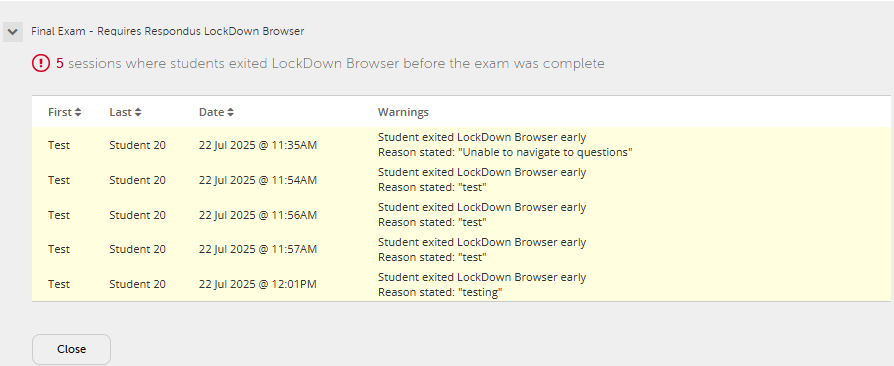
Instructors have the option to lock students into an exam until they have submitted it for grading, or to allow them to exit early by providing a reason.
By default, the 'early exit' setting is disabled. When this is the case, students who leave an exam before submitting it will need to provide a reason for their early exit. Instructors can then view these reasons. We recommend keeping the setting disabled by default, as there are often valid reasons for a student needing to leave an exam early.
The alternative is to enable the "Lock students into the browser until exam is completed" and provide a proctor password in the field. During testing, if a student needs to leave early, you will need to enter the proctor password on their device in order to end the exam.
View the Early Exits Report
-
Navigate to your D2L Quizzes and click on the "LockDown Browser" tab. If you see a number next to the quiz, this indicates how many students left the exam early.

-
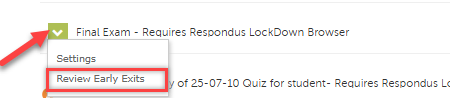
Click the drop-down arrow next to your quiz. The 'Review Early Exits' option, which was previously disabled before the test, will now be clickable if there were students who left early. If no students left early, this option will remain grayed out.
-
Select "Review Early Exits," and you will see a list of students along with the reasons they provided for leaving the exam early.