


Turnitin Feedback Studio
Creating and Managing Assignments
Turnitin Feedback Studio is integrated directly into D2L Brightspace, giving you access to similarity checking, AI writing detection, and online grading tools — all within your existing course workflow. Before using Turnitin, be sure to add the recommended statement to your course syllabus. An example is available on the Faculty Resources page.

Important: Turnitin must be enabled in the assignment settings before students make their first submission. It cannot be added after students have already submitted their work.
Creating a Turnitin Assignment
Turnitin can be enabled for a new or existing assignment. To enable it on an existing assignment, the settings must be updated before students submit their work.
Navigate to Course Assignments
Go to your course in D2L, then on the navbar, select "Assignments."
Create a New Assignment
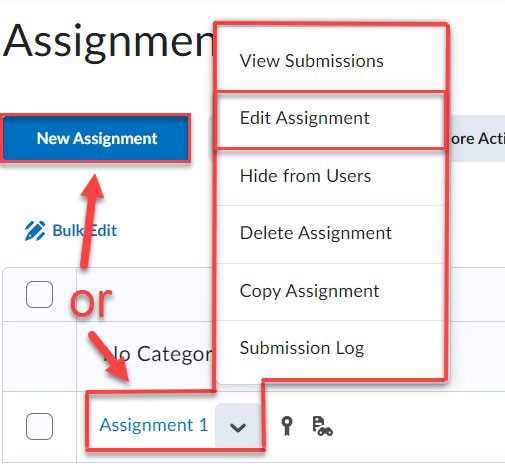
Click the "New Assignment" button.
To enable Turnitin on an existing assignment, select the drop-down arrow next to the assignment name and choose "Edit Assignment". Remember, Turnitin must be enabled before students submit their papers.
On the assignment page, enter or edit the name, grade, and other details as you normally would. Three expandable sections on the right side of the page contain settings relevant to Turnitin:
-
Availability Dates & Conditions — Set the start and end dates, release conditions, and any special access for individual students. These settings are not required for Turnitin, but a due date is necessary if you plan to use collusion checking.
-
Submission & Completion — Set "Submission Type" to "File Submission" and "Allowable File Extensions" to "Compatible with Turnitin." This ensures students submit in formats Turnitin can process.
-
Evaluation & Feedback — To add a template for exclusion, you must check "Enable Similarity Report for this folder."
Select "Manage Turnitin" at the bottom of this section to open the Turnitin Integration window.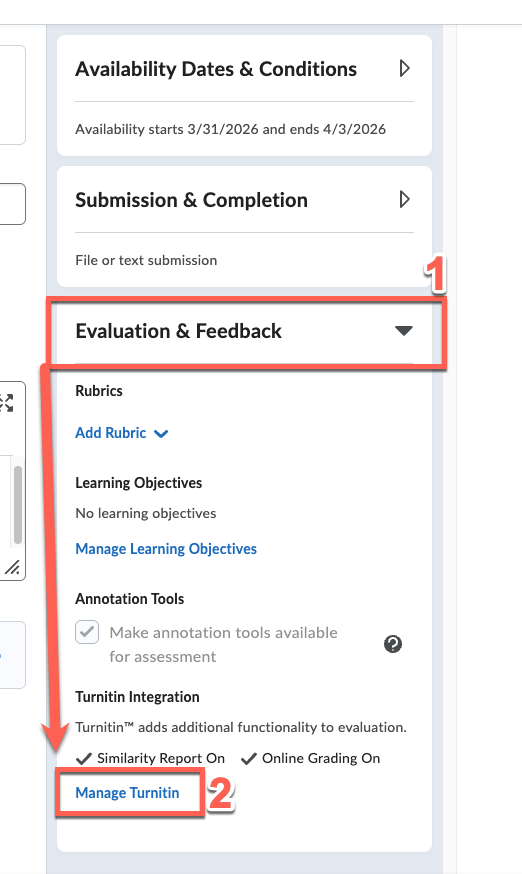
-
Configure Turnitin Settings
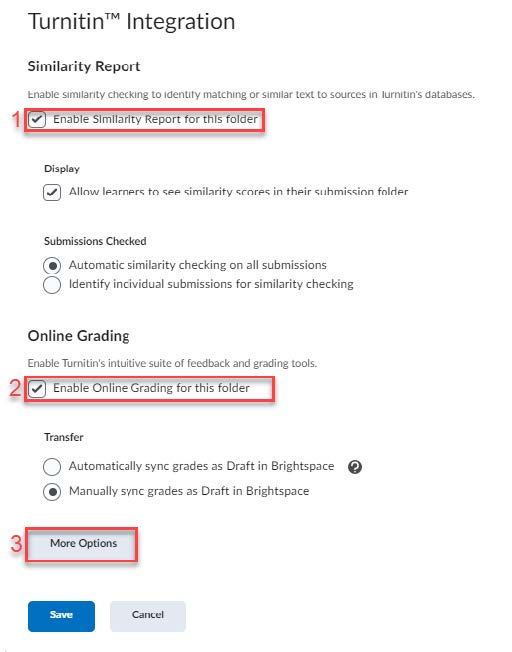
In the Turnitin Integration window, enable the Similarity Report, Online Grading, or both. Then select "More Options" to continue to Step 4.
-
Similarity Report — If you enable the Similarity Report, you can allow students to see their similarity scores by clicking the checkbox under “Display.” It is recommended that you select “Automatic similarity checking on all submissions” under “Submissions Checked” because this allows papers from every student to go through similarity checking.
-
Online Grading — If you enable Online Grading, it is recommended that you select the option to “Automatically sync grades as Draft in Brightspace.” This will not automatically release the grades to the students; it simply syncs the grades between D2L and Turnitin automatically.
-
Review 'More Options'
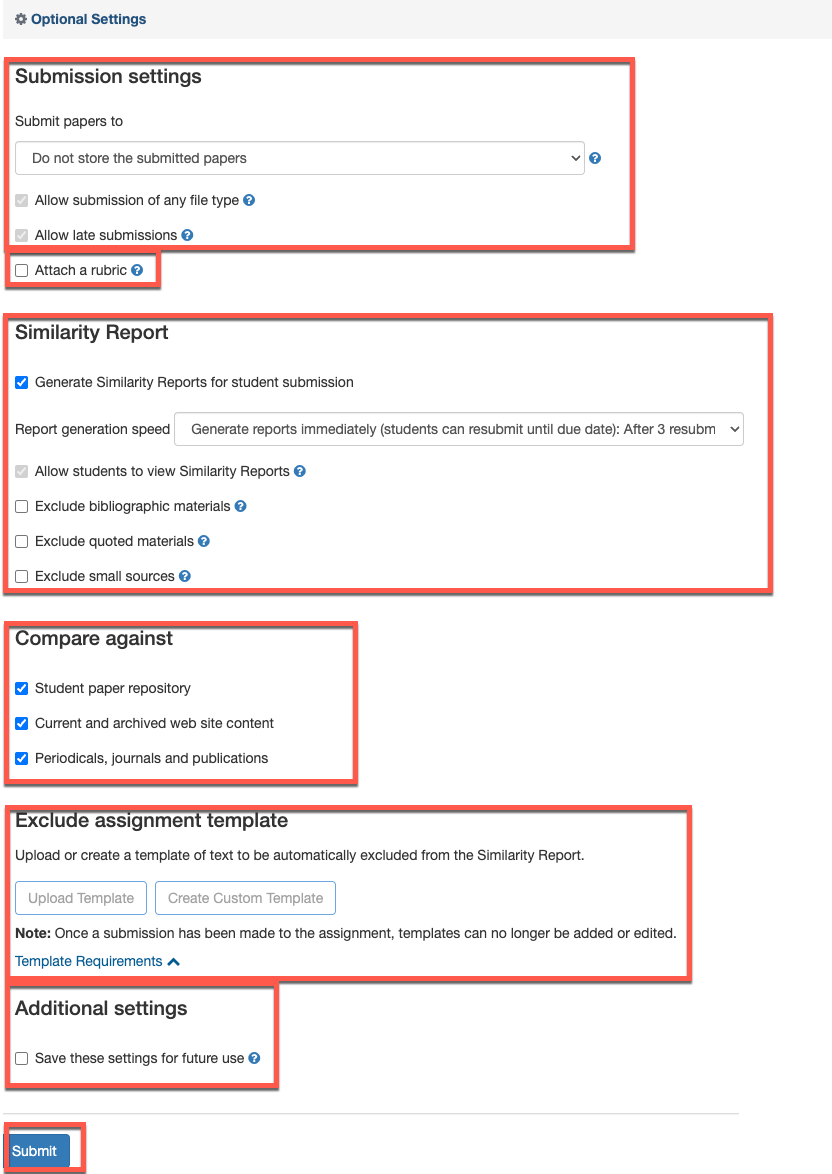
Despite the name, these settings are important and should be reviewed before saving.
-
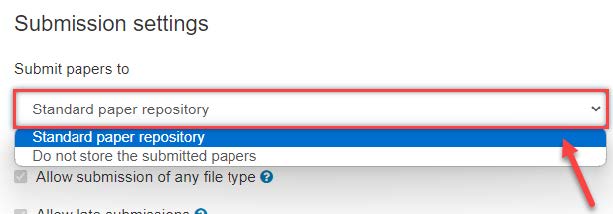
Submission Settings — Choose whether to store papers in the Standard paper repository. If students will be submitting multiple drafts of the same assignment, do not select this option — Turnitin will compare new drafts against earlier saved versions, producing an artificially high similarity score.
-
Attach a Rubric — Rubrics built in Turnitin are not visible to students until feedback is published. If you want students to see the rubric while working, share it through D2L directly (in course content, the syllabus, etc.). Contact Distance Education for help with the rubric builder.
-
Compare Against — Choose what sources to compare papers against: student paper repository, website content, publications, or any combination.
-
Similarity Report — Select when Turnitin generates similarity reports:
-
Generate reports immediately (students cannot resubmit) — Reports generate as soon as each student submits. No automatic report is generated on the due date, so this option does not support automatic collusion checking; the instructor would need to manually regenerate reports (see the Checking for Collusion tab for instructions).
-
Generate reports immediately (students can resubmit until the due date) — Reports generate immediately after each submission. After 3 submissions, reports generate after a 24-hour delay. A final report for all submissions is automatically generated within one hour of the due date, enabling collusion checking. If matches are found between submissions, similarity percentages will change after the due date.
-
Generate reports on due date (students can resubmit until due date) — Students can revise and resubmit up to the deadline. A final report is automatically generated within one hour of the due date, enabling collusion checking. If matches are found between submissions, similarity percentages will change after the due date.
You can also choose to exclude bibliographic material, quoted material, and small sources from similarity checking. See the Checking for Collusion tab for more details on how these settings affect collusion checking.
-
-
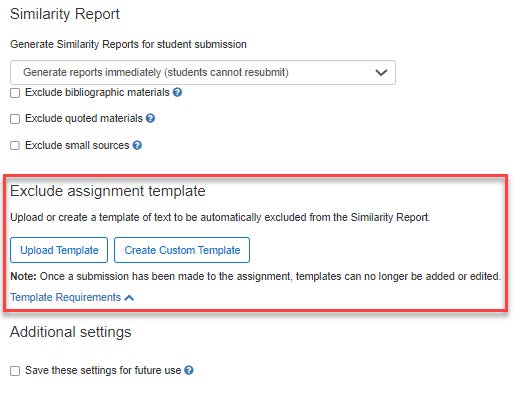
Exclude Assignment Template — If your assignment uses a shared template, upload it here to prevent that shared text from inflating students' similarity scores. See the Excluding Assignment Templates tab for more info.
-
Additional Settings — Select "Save these settings for future use" to apply this configuration as the default for future Turnitin assignments.
-
Click "Submit" when finished.
-
Save and Finalize
After submitting your additional options, click “Save” on the Turnitin Integration window from Step 3.
You will be directed back to the Assignments page. At the bottom of the page, toggle on visibility to allow students to see the assignment. Save all of your changes by clicking either the blue “Save and Close” button or the gray “Save” button.
On the Assignments page, you will see an icon beside the assignment to show that Turnitin has been enabled.
Reviewing Submissions
Once students have submitted their papers, you will be able to view their results in the Assignment Submissions Folder.
-
The color-coded similarity score will be displayed if the Similarity Report is enabled.
-
If Online Grading is enabled, the grade will be shown once you complete grading in Turnitin.
Learn More about Reviewing Submissions and Providing Feedback
-
Checking for Collusion Among Student Submissions
The Similarity Report can compare student papers against external sources and against each other within the same assignment, helping to identify potential collusion. Understanding the difference between collusion and collaboration is important context before using this feature.
Setting Up for Collusion Checking
Collusion checking requires two specific settings to be configured when creating the assignment. See the previous tab 'Creating an Assignment' for instructions on how to create or edit an assignment.
-
Set a due date — Collusion checking compares submissions against each other after the deadline. Your assignment must have a due date for this process to work.
-
Submit papers to the Standard paper repository — In More Options under "Submission Settings" (step 4 of Creating An Assignment), select "Standard paper repository." Papers that are not stored cannot be compared against other submissions for collusion.
-
Choose the right Similarity Report generation option — The generation timing setting directly determines whether collusion checking happens automatically:
-
Generate reports immediately (students cannot resubmit) — Turnitin will not automatically generate a new report on the due date. Papers are only compared against external sources. If you suspect collusion but the similarity scores don't reflect it, you will need to manually regenerate the reports, see below.
-
Either resubmit option — Turnitin automatically generates a final similarity report for all submissions within one hour of the due date/time. Student papers are compared against each other, and similarity scores may change after the deadline if matches are found between submissions.

-
Manually Regenerating a Similarity Report
If you need to manually trigger a new report for collusion checking:
-
Open the student's submission in Turnitin Feedback Studio.
-
On the right panel, select the red filter icon from the Similarity toolbar.
-
At the bottom of the Filters and Settings panel, select New Report.
Note: Generating a new report permanently overwrites the previous one. Download the existing report first if you need to preserve it.
Excluding Assignment Templates
When students are provided the same template to use—a prompt, worksheet, etc—that shared text appears in every student's similarity report, inflating scores. Instructors can upload the template to the assignment telling Turnitin to exclude that text from all students' reports.
Important: You can add a template to an existing D2L assignment, however the template must be added before any submissions have been made to the assignment.
Adding a Template
-
In D2L, create a new assignment or edit an existing one. See the 'Creating an Assignment' tab for instructions on how to create or edit an assignment. Fill in the assignment details.
-
Go to "Evaluation & Feedback" and then click "Manage Turnitin." ('creating' step 2c)
-
Complete the form to your preferences. Ensure "Enable Similarity Report for this folder" is checked, it is required to add a template for exclusion.
-
Locate the Exclude assignment template option in the 'More Options' section. ('creating' step 4e)
-
Review the 'Template Requirements' for more information, then choose one of the following:
-
Upload Template — Select a file from your computer.
-
Create Custom Template — Type or paste the template text directly into the text field provided.
-
-
After uploading or saving the template, select Submit.
-
Select Save in the Turnitin Integration window.
-
Select Save and Close or Save on the assignment page.
Exempting Individual Students
If a specific student should not have their submission checked by Turnitin, you can exempt them at the course level.
Turnitin exemptions apply to all Turnitin-enabled assignment folders within the course—not just a single assignment.
-
On the Assignment Submission Folders page, from the More Actions context menu, select "Manage Preference for Turnitin".
-
On the Manage Preference for Turnitin page, use the toggles to set each student's status:
-
X on the toggle — The student's submissions are exempt from Turnitin.
-
Checkmark on the toggle — The student's submissions will be processed by Turnitin.
-
Need assistance?
Contact Distance Education at online@apsu.edu or (931) 221-6625, Monday through Friday from 8:00 am to 4:30 pm.