


Student Resources
When taking a test in your physical classroom, your instructor may want to ensure that the steps are in place for a level playing field in test-taking. If your instructor has opted to use LockDown Browser, rest assured we have all the information you need to get started.
This is a not a requirement for all courses, and is at your instructor’s discretion. Refer to your course syllabus, course content in D2L, or contact your instructor to determine if you will need to use this software. Please review the resources on this page.
Device and Browser Requirements
Ensure that you have access to a testing device that meets the minimum system requirements to install the software. If your personal device does not meet the system requirements and you cannot use another device, please discuss possible accommodations with your instructor.
Note: Students using a device owned/managed by APSU, the military, Clarksville-Montgomery School System (CMCSS), or another high school cannot use the download link inside D2L Quizzes to install Respondus onto the device..
-
The correct version should already be installed on APSU managed devices issued to students or available on campus. If you are experiencing an issue, please contact GOVSTECH and note specifically that you are using an APSU managed device.
-
CMCSS students taking APSU courses should contact CMCSS technical support and note that they need the "APSU Respondus MSI version" installed on the device and follow direction from technical support.
-
For all other cases, please connect with the information technology office that owns the device. If they are willing to permit Respondus installation, they must contact Distance Education to get the APSU version of Respondus for managed devices.
You can use any browser, except Safari, to access the quiz in D2L. After installation (see below), you will "launch LockDown Browser" and take the quiz within that browser. It will not impact any other browsers already installed.
Installing Respondus
To access Respondus LockDown Browser, navigate to the D2L quiz as you usually would. You can use any browser except Safari to do this. Please note, you will never open the Respondus browser on your device first to start a quiz. You will always go to the quiz in D2L first and then launch Respondus.
The quiz will have "Requires Respondus LockDown Browser" in the title. At the bottom of the quiz page, under “Quiz Requirements,” select "Download and Install..." which will download the installer file to your device. Run the installer file and ensure you receive a confirmation that the install was successful. Please note, the Respondus software is specific for APSU. You cannot search and install any Respondus version from the internet.
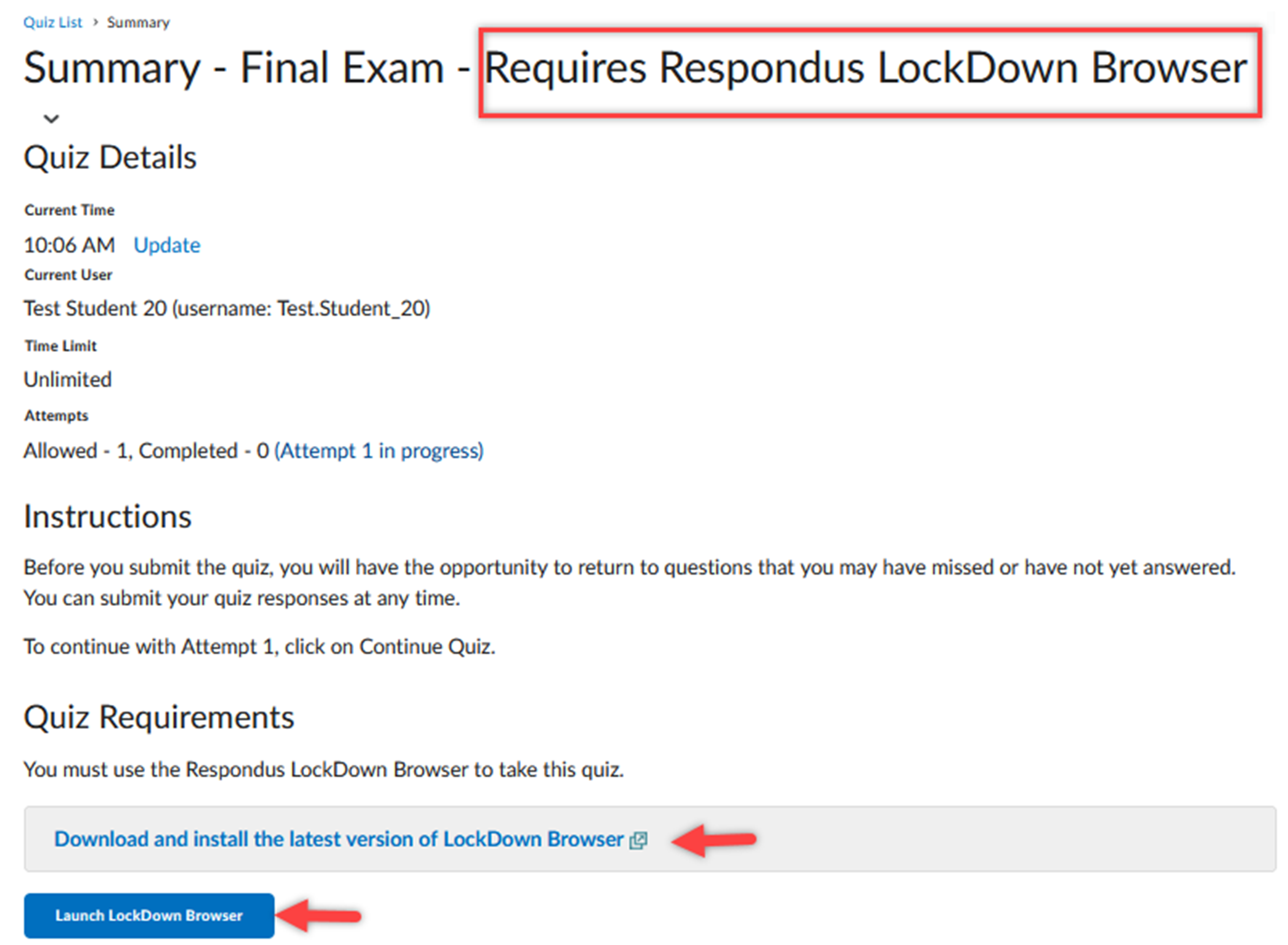
The download page will provide information on system requirements and a quick overview
video. Mac users should be aware that there may be specific restrictions or issues
that could affect the download process. Refer to this guide for Mac troubleshooting assistance. 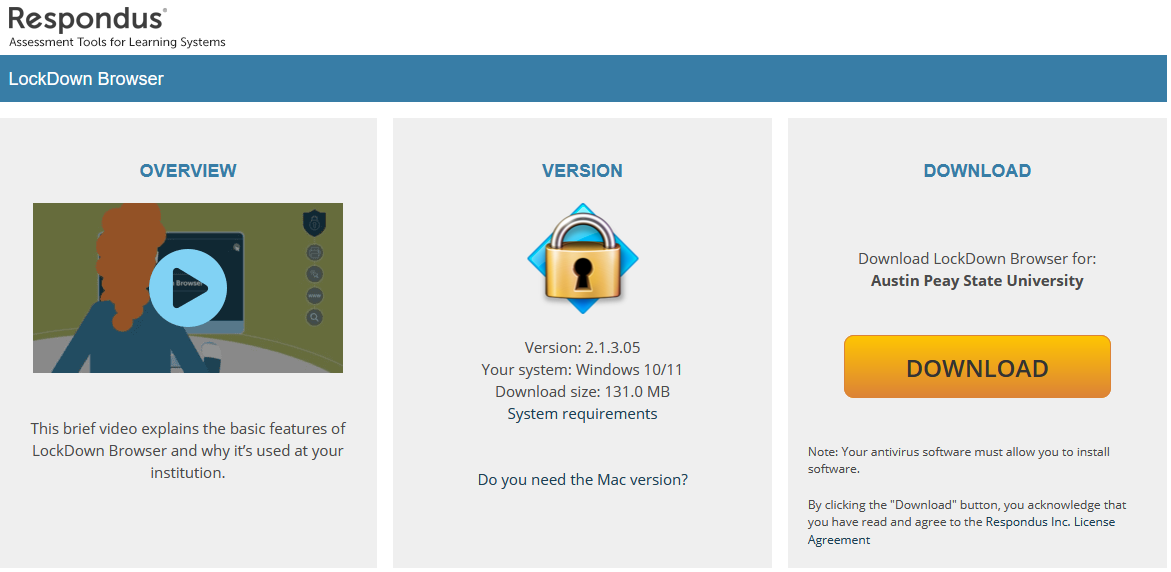
The Windows and Mac versions of LockDown Browser have a "Help Center" button located on the toolbar. Use the "System & Network Check" to troubleshoot issues.
Next, you will launch the exam. Refer to the "Taking an Exam" tab for details.
Installation Issues
If you experience any installation issues, please follow this checklist:
-
Testing on a "managed device" i.e. a device owned and managed by APSU, the military, a high school, etc.:
-
You will need to coordinate with the respective tech office for installation. If they do not already have the APSU version of Respondus for managed devices, they must contact Distance Education. Refer to the "Device and Browser Requirements" tab for more information
-
-
Testing on a personal device:
-
Does your device meet the minimum system requirements to install Respondus?
-
Where are you downloading the Respondus software? You must download it directly from your D2L course. The software is specific to APSU and is not available through online searches. It is also full software, not a browser extension. Refer to the "Installing Respondus" tab for more information.
-
After selecting the option within your quiz to "Download and Install the latest version of LockDown Browser," did you locate the installation file on your device and run the install? Did you receive the confirmation screen that the install was successful? Is Respondus listed on your device as an installed app? For example, on a Windows device, this would be visible under Settings > Apps > Installed Apps.
-
After downloading and installing Respondus on your testing device, did you go back to your quiz in D2L and select "Launch LockDown Browser"?
-
What browser are you using to access the D2L quiz? You can use any browser except Safari. Once you have downloaded, installed, and selected to launch Respondus, it will open the D2L quiz directly in the Respondus browser. You cannot open Respondus on your computer first and then access the quiz.
-
-
Mac users may experience additional issues:
Taking an Exam
Note: Fully review the "Device and Browser Requirements" and "Installing Respondus" tabs on this page before proceeding.
To access Respondus LockDown Browser, navigate to the D2L quiz as you usually would. You can use any browser except Safari to do this. Please note, you will never open the Respondus browser on your device first to start a quiz. You will always go to the quiz in D2L first and then launch Respondus.
The quiz will have "Requires Respondus LockDown Browser" in the title. At the bottom of the quiz page, under “Quiz Requirements,” select "Launch LockDown Browser."
Once the exam has started, students are locked into the exam. They’re unable to print, copy, go to other web addresses, or access other applications on the computer. Web searches, instant messaging, minimizing the browser, and hundreds of other functions are also prevented. Once the exam is completed, students are permitted to exit the browser and their computer will return to its normal state. If a student needs to exit the exam before submitting it, for example in case of an emergency or internet failure, they are required to enter a reason for exiting the exam early. Instructors can then view this within the LockDown Browser dashboard.
LockDown Browser for D2L Brightspace: An Introduction
Early Exits
The option to exit early is dependent on the exam permissions setup by the instructor.
If you need to exit the exam before submitting it, such as in an emergency or due to an internet failure, you must provide a reason for leaving early. To close the browser, click the X. A pop-up will appear, indicating that the exam is not complete. If you choose to close the browser, you will be required to submit your reason for leaving. This information will be accessible to your instructor.
If you are not provided with the option to exit early, you will need to complete and submit the quiz. Contact your instructor with any concerns.