


Taking an Exam in D2L
Most often, your exams will be in D2L. Faculty may refer to them differently, but all quizzes, tests, exams, etc. are located in the same place. Once you are in your course in D2L, select "Quizzes" on the navbar then select from your list of quizzes.
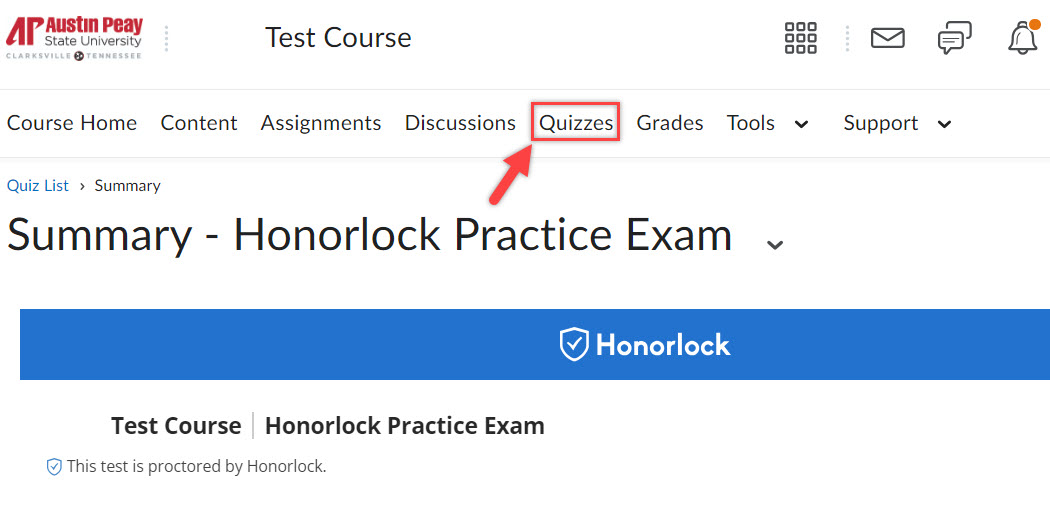
Additionally, refer to the side panel on this page to access general guidelines on preparing for your Honorlock exam and troubleshooting assistance.
Honorlock Desktop Application
For some exams, your instructor may require enhanced security settings. In these cases, you will need to use the Honorlock Desktop Application. When you launch your exam, you will be prompted to download and install the application if it is not already installed. The Honorlock Chrome extension is still required, and the standard exam process remains the same. For an overview of the basic steps, refer to Preparing for Your Exam. Once the application is installed and running, you will be prompted to complete a secure relaunch of your Chrome browser. This process will close and restart your browser, after which you will proceed through the standard Honorlock authentication steps.
Managed Devices: If you are using a managed device (such as one issued by APSU or another organization), you may be prompted to enter your credentials to install the application. If you have difficulties installing the software yourself, please contact the IT department responsible for your device. For APSU-managed devices, submit a software installation ticket with GOVSTECH.
Chromebook Users: The experience differs slightly for Chromebook users. Chromebooks do not support application downloads; however, the same exam restrictions will still apply.
This overview is intended to help you get started. For full details, expectations, and troubleshooting guidance, refer to the complete Honorlock guide for using the Desktop Application.