Visual Impairment
Visual Impairment assistive software is available on computers in the Disability Student Success Center (DSSC) and campus computer labs.
If you encounter any campus systems, you’d like to access that seem to be missing this software, please email DSSC so we can reach out to the appropriate contact and work with the Office of Information Technology to install the software.
APSU faculty, staff, and students can utilize JAWS in their offices or personal computers through a campus site license. To start, visit portal.freedomscientific.com and create a portal account with your APSU email address. Once you have created an account, you will have the ability to download JAWS to your computer.
Please note that these programs are only compatible with devices running Windows Operating Systems
JAWS/ZoomText/Fusion at home?
ASPU’s Disability Student Success Center (DSSC) is proud to offer this tool for free to eligible students. Below are the instructions for setting up a home-use copy of JAWS/ZoomText/Fusion.
-
Enter your APSU e-mail (for example, yourinfo@my.apsu.edu) in the appropriate field on the Freedom Scientific webpage.

-
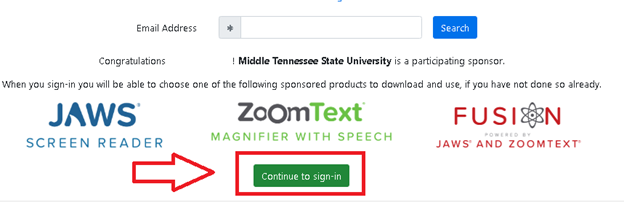
Activate the “Search” button once your e-mail address has been entered. The page will inform you that APSU is a participating sponsor, and you qualify for a free home-use version of either JAWS, ZoomText, or Fusion, depending on your preference. Activate the “Continue to sign in” link to proceed with the process.
-
After continuing to the sign-in page, you may use the “register as a new user” link to create an account. Use your Austin Peay e-mail while registering. Next, choose and claim your free copy of either JAWS, ZoomText, or Fusion.
-
Log into your account on the computer you want the software installed on, as described in Step #3. Once logged in, you can select the program of interest to you, and the relevant installer will be provided.
-
Run the installer and complete the installation; the installers are voice-guided to assist users without vision. You may be asked to restart your computer once the installation is completed.
-
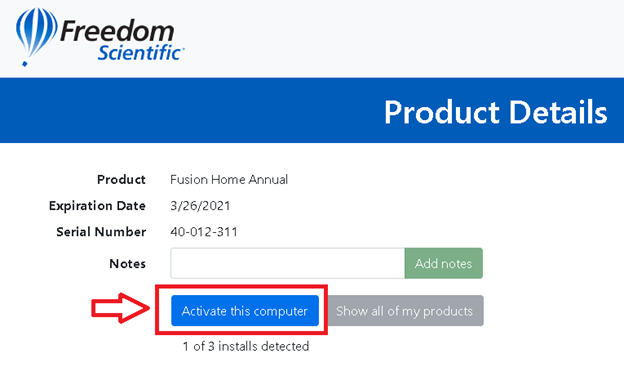
While logged into Freedom Scientific with the account you created earlier, a button will be marked “Activate this Computer.” Using said button will bring up a listing of JAWS/ZoomText/Fusion, where you may select the option you installed and receive an activation file. The activation file will validate your home-use software for one year of unlimited use.
-
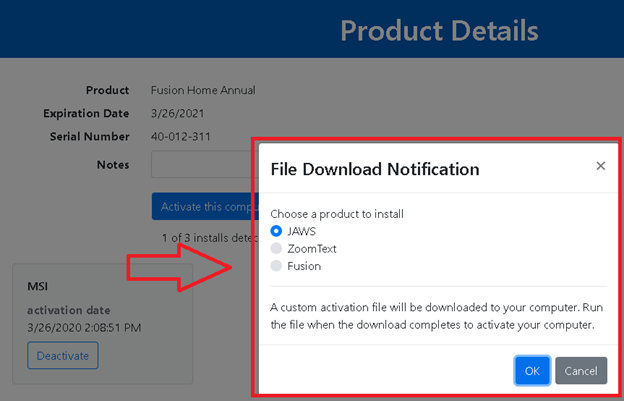
After selecting the program of your choice in Step #5, activate the “OK” button, and an activation file will automatically download. Run this file when the download completes, and your software will automatically be activated for use within a few seconds; a pop-up will appear stating congratulations and confirming you are good to go. You’re now done!
If you encounter any issues with this process, please contact the Adaptive Technology Center for assistance or contact Freedom Scientific Customer Service at 727-803-8000 with any issues regarding their webpage portal discussed here.
Training and Features of JAWS/ZoomText/Fusion
JAWS
-
An electronically accessible Quick Start Guide for JAWS is available here: JAWS Quick Start Guide PDF
-
Helpful JAWS keystrokes may be learned about here: JAWS Keystrokes
-
For users of Freedom Scientific’s Focus braille displays, input commands may be found here: Braille Input Commands
-
For those who prefer videos, this short video introduces users to using JAWS on the Windows Desktop.
Ready for more knowledge? Additional JAWS training videos on specific subjects/applications are available through Freedom Scientific’s training program under the JAWS playlist: YouTube – Freedom Scientific Training.
ZoomText
-
An electronically accessible Quick Start Guide for ZoomText is available here: ZoomText Quick Start Guide PDF.
-
Helpful ZoomText keystrokes may be learned about here: ZoomText Keystrokes.
-
For those who prefer videos, this comprehensive video demonstrates ZoomText features.
Ready for more knowledge? Additional ZoomText training videos on specific subjects/applications are available through Freedom Scientific’s training program under the ZoomText playlist: YouTube – Freedom Scientific Training.
Fusion
-
An electronically accessible overview of using Fusion functions may be viewed on the following webpage: Fusion Info.
-
Since Fusion is a combination of ZoomText and JAWS, the information for each program above applies to Fusion. For complete instructions on using ZoomText, refer to the ZoomText User Guide. For complete instructions on using JAWS, see the JAWS Documentation.
-
For those who prefer videos, the following introduction video will describe to users the main Fusion toolbar and its features.
Ready for more knowledge? Additional Fusion training videos on specific subjects/applications are available through Freedom Scientific’s training program under the Fusion playlist: YouTube – Freedom Scientific Training
This Duxbury Braille translation software allows DSSC to transform a common word processor file from ASCII characters to Grade II Braille.
Braille displays allow blind and deaf/blind users to access a variety of software through tactile Braille output. The display is used in conjunction with a PC and either a screen reading software package like JAWS for Windows or other Braille-ready software
View Plus Tiger Embosser (Print pictures you can feel)
View Plus is a high-resolution tactile graphics embosser that enables individuals who are blind and/or deaf/hard of hearing to access maps, graphs, tables, or pictures.